There has been a bit of talk on the Applix forum about treemaps recently.
I think this type of graph would be very useful to analyse certain data types
and until Applix release their built in version, I have been using this excel addin from Microsoft Research:
http://research.microsoft.com/research/downloads/Details/3f3ed95e-26d8-4616-a06c-b609df29756f/Details.aspx
I pretty sure I can output the required csv file and then execute the command line version of the treemapper to auatmate production of graphs.
Showing posts with label Excel. Show all posts
Showing posts with label Excel. Show all posts
Friday, June 15, 2007
Wednesday, April 18, 2007
Gannt Charts off TM1
I recently got asked to do some projects reporting in TM1.
One report they needed was a Gannt chart of the various stages each Project was at
e.g.
Start, Design, Implement, Finsh
So what I did was store the dates in TM1 so that the PMs could update them, do a DBRW in Excel to fetch the dates, then a days360() excel formula to calculate the number of days between each phase.
Once I had this data I then used the methods outlined in this article to produce a bar chart showing each of the 4 stages.
Who needs microsoft project ;-)
http://peltiertech.com/Excel/Charts/GanttChart.html
One report they needed was a Gannt chart of the various stages each Project was at
e.g.
Start, Design, Implement, Finsh
So what I did was store the dates in TM1 so that the PMs could update them, do a DBRW in Excel to fetch the dates, then a days360() excel formula to calculate the number of days between each phase.
Once I had this data I then used the methods outlined in this article to produce a bar chart showing each of the 4 stages.
Who needs microsoft project ;-)
http://peltiertech.com/Excel/Charts/GanttChart.html


Saturday, March 24, 2007
Microcharts on TM1 Data

Check out this picture of an Excel dashboard, created using Microcharts, running off the sdata TM1 server.
You can download this file and examples from other olap servers here:
http://www.bonavistasystems
Thursday, March 01, 2007
Automatically load TM1
If you want to ensure that when a user loads an Excel report that TM1 is loaded, you can add the tm1p.xla as a reference to that file.
That way Excel will always check TM1 is loaded.
In the VBA go Tools > References > Browse
and browse to where tm1p.xla is installed.
This will then appear as a reference in your project.
Save the file, close down excel and open that file.
The file will load tm1 automatically.
That way Excel will always check TM1 is loaded.
In the VBA go Tools > References > Browse
and browse to where tm1p.xla is installed.
This will then appear as a reference in your project.
Save the file, close down excel and open that file.
The file will load tm1 automatically.
Thursday, February 08, 2007
Excel Toolbars
Good article here about how you can add a toolbar to your Excel workbook.
I use this myself to create a floating toolbar of worksheets available for selection within Excel TM1 reports.
http://www.contextures.com/xlToolbar02.html
I use this myself to create a floating toolbar of worksheets available for selection within Excel TM1 reports.
http://www.contextures.com/xlToolbar02.html
Saturday, January 20, 2007
Excel Application Events
Sometimes in your Excel front-ends for TM1 you may want to capture events at an Application level
e.g. For every excel workbook open, you may want to capture the double click event and run a certain set of code.
The best way to do this I have found is using the following link:
http://www.cpearson.com/excel/AppEvent.htm
e.g. For every excel workbook open, you may want to capture the double click event and run a certain set of code.
The best way to do this I have found is using the following link:
http://www.cpearson.com/excel/AppEvent.htm
Monday, December 11, 2006
vba progress bars
If you have a vba report that takes a bit of time to work out the results then you should display progress to the user so that they know the report is working and hasn't crashed.
Andy Pope's website has some fantatic progress bars that you can download and use in your applications:
http://www.andypope.info/vba/pmeter.htm
Andy Pope's website has some fantatic progress bars that you can download and use in your applications:
http://www.andypope.info/vba/pmeter.htm
Thursday, November 23, 2006
TM1 and Text Commentry
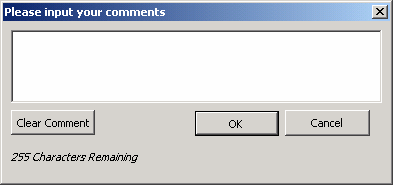 There always seems to be a bit of debate about TM1 and text. TM1 is built for number crunching rather than being a text database but companies often need to store variance or budget commentry in their TM1 database.
 A TM1 cell can hold 255 characters but editing of that text in Excel can prove frustrating to users as they will need to re-type everything.
To make this easier for users I put together this simple vba form with the code below. Basically if the users clicks on a Light Green coloured cell, a vba form as per above will show. They can then edit existing text or enter new text and upon pressing OK the vba will DB send the text to TM1. I tried to make the code as generic as possible so it will decipher any TM1 formula. At the moment though every reference in the formula will need to be a range rather than a hard coded element name
e.g. $A$1 rather than "Jan".
The code in blue goes as an event to the worksheet. The code in red goes behind the form.
It should be pretty easy to replicate the form or I can email an example through.
Apologies that I can't figure out how to indent my code easily in html.
Private Sub Worksheet_SelectionChange(ByVal Target As Range)
If Target.Interior.ColorIndex = 35 Then
Load inputWindow
inputWindow.Show
End If
End Sub
Option Explicit
'********************************************************************************
'** J.WAKEFIELD
'** Counter of characters
'********************************************************************************
Sub CountDown(ByVal inCounter As Integer)
' make sure comment is not more then 256 characters long
Dim intCounter As Integer
Application.DisplayStatusBar = True
Application.StatusBar = (255 - inCounter) & " Characters Remaining"
Me.lblCharacters.Caption = (255 - inCounter) & " Characters Remaining"
End Sub
'********************************************************************************
'** J.WAKEFIELD
'** Cancel button
'********************************************************************************
Private Sub btnCancel_Click()
'close window with out sending information
inputWindow.Hide
Unload inputWindow
Application.StatusBar = ""
End Sub
'********************************************************************************
'** J.WAKEFIELD
'** Clear text
'********************************************************************************
Private Sub btnClear_Click()
txtComments.Value = ""
End Sub
'********************************************************************************
'** J.WAKEFIELD
'** Create variables to use to send
'********************************************************************************
Private Sub btnOK_Click()
Dim arrFormula() As String, arrDims() As String
Dim strFormula As String, strCube As String
Dim iCommaPos As Integer, iBracketPos As Integer, iNoDims As Integer
Dim i As Integer
'Find Cube name
strFormula = ActiveCell.Formula
iBracketPos = InStr(strFormula, "(")
iCommaPos = InStr(strFormula, ",")
'Get cube name
strCube = ActiveSheet.Range(Mid(strFormula, iBracketPos + 1, iCommaPos - iBracketPos - 1)).Value
'Split formula by commas
arrFormula = Split(strFormula, ",", -1, vbTextCompare)
ReDim arrDims(UBound(arrFormula()))
' Get range values
For i = 1 To UBound(arrFormula())
If i = UBound(arrFormula()) Then
arrFormula(i) = Left(arrFormula(i), Len(arrFormula(i)) - 1)
End If
arrDims(i) = ActiveSheet.Range(arrFormula(i)).Value
Next i
'Pass array to be evaluated and sent
Call SendComment(strCube, arrDims())
'Clean up
Application.StatusBar = ""
Unload inputWindow
ActiveCell.Calculate
End Sub
'********************************************************************************
'** J.WAKEFIELD
'** TM1 Send comment
'********************************************************************************
Private Sub SendComment(p_strCube As String, p_Formula() As String)
Dim temp As Variant
Dim iMax As Integer
'Find number of dimensions to use correct send formula
iMax = UBound(p_Formula())
Select Case iMax
Case 3
temp = Application.Run("DBSS", txtComments.Value, p_strCube, p_Formula(1), p_Formula(2), p_Formula(3))
Case 4
temp = Application.Run("DBSS", txtComments.Value, p_strCube, p_Formula(1), p_Formula(2), p_Formula(3), p_Formula(4))
Case 5
temp = Application.Run("DBSS", txtComments.Value, p_strCube, p_Formula(1), p_Formula(2), p_Formula(3), p_Formula(4), p_Formula(5))
Case 6
temp = Application.Run("DBSS", txtComments.Value, p_strCube, p_Formula(1), p_Formula(2), p_Formula(3), p_Formula(4), p_Formula(5), p_Formula(6))
Case 7
temp = Application.Run("DBSS", txtComments.Value, p_strCube, p_Formula(1), p_Formula(2), p_Formula(3), p_Formula(4), p_Formula(5), p_Formula(6), p_Formula(7))
Case 8
temp = Application.Run("DBSS", txtComments.Value, p_strCube, p_Formula(1), p_Formula(2), p_Formula(3), p_Formula(4), p_Formula(5), p_Formula(6), p_Formula(7), p_Formula(8))
Case 9
temp = Application.Run("DBSS", txtComments.Value, p_strCube, p_Formula(1), p_Formula(2), p_Formula(3), p_Formula(4), p_Formula(5), p_Formula(6), p_Formula(7), p_Formula(8), p_Formula(9))
Case 10
temp = Application.Run("DBSS", txtComments.Value, p_strCube, p_Formula(1), p_Formula(2), p_Formula(3), p_Formula(4), p_Formula(5), p_Formula(6), p_Formula(7), p_Formula(8), p_Formula(9), p_Formula(10))
Case 11
temp = Application.Run("DBSS", txtComments.Value, p_strCube, p_Formula(1), p_Formula(2), p_Formula(3), p_Formula(4), p_Formula(5), p_Formula(6), p_Formula(7), p_Formula(8), p_Formula(9), p_Formula(10), p_Formula(11))
Case 12
temp = Application.Run("DBSS", txtComments.Value, p_strCube, p_Formula(1), p_Formula(2), p_Formula(3), p_Formula(4), p_Formula(5), p_Formula(6), p_Formula(7), p_Formula(8), p_Formula(9), p_Formula(10), p_Formula(11), p_Formula(12))
Case 13
temp = Application.Run("DBSS", txtComments.Value, p_strCube, p_Formula(1), p_Formula(2), p_Formula(3), p_Formula(4), p_Formula(5), p_Formula(6), p_Formula(7), p_Formula(8), p_Formula(9), p_Formula(10), p_Formula(11), p_Formula(12), p_Formula(13))
Case 14
temp = Application.Run("DBSS", txtComments.Value, p_strCube, p_Formula(1), p_Formula(2), p_Formula(3), p_Formula(4), p_Formula(5), p_Formula(6), p_Formula(7), p_Formula(8), p_Formula(9), p_Formula(10), p_Formula(11), p_Formula(12), p_Formula(13), p_Formula(14))
Case 15
temp = Application.Run("DBSS", txtComments.Value, p_strCube, p_Formula(1), p_Formula(2), p_Formula(3), p_Formula(4), p_Formula(5), p_Formula(6), p_Formula(7), p_Formula(8), p_Formula(9), p_Formula(10), p_Formula(11), p_Formula(12), p_Formula(13), p_Formula(14), p_Formula(15))
Case 16
temp = Application.Run("DBSS", txtComments.Value, p_strCube, p_Formula(1), p_Formula(2), p_Formula(3), p_Formula(4), p_Formula(5), p_Formula(6), p_Formula(7), p_Formula(8), p_Formula(9), p_Formula(10), p_Formula(11), p_Formula(12), p_Formula(13), p_Formula(14), p_Formula(15), p_Formula(16))
End Select
'Catch Errors
If temp = "KEY_ERR*" Then
MsgBox "An error occurred sending comment, please contact your TM1 administrator", vbCritical, "TM1"
End If
End Sub
'********************************************************************************
'** J.WAKEFIELD
'** Keep track of count
'********************************************************************************
Private Sub txtComments_KeyUp(ByVal KeyCode As MSForms.ReturnInteger, ByVal Shift As Integer)
CountDown Len(txtComments.Value)
End Sub
'********************************************************************************
'** J.WAKEFIELD
'** Display original comment
'********************************************************************************
Private Sub UserForm_Activate()
txtComments.Value = ActiveCell.Value
CountDown Len(txtComments.Value)
End Sub
Wednesday, November 22, 2006
Printing TM1 Excel Reports

Initially when I started creating TM1 reports in Excel I use to always change the page setup for printing to be either Fit to 1 page wide by 1 page tall or adjust the % until it looked right.
Nowadays I find it a lot easier to select fit to 1 page wide but blank out the page tall setting.
This
I find makes things a lot easier and more flexible.
Tuesday, November 07, 2006
Protecting worksheets...
One feature that I find very useful when building applications is the ability to protect only the user interface.
I.e.
Sub Protect_sheet(S As Worksheet)
S.Protect UserInterFaceOnly:=True
End Sub
This is incredibly handy as it enables us to make modifications to worksheets via vba (without having to toggle sheet protection off and on all of the time).
I.e.
Sub Protect_sheet(S As Worksheet)
S.Protect UserInterFaceOnly:=True
End Sub
This is incredibly handy as it enables us to make modifications to worksheets via vba (without having to toggle sheet protection off and on all of the time).
Workbook Events VBA
There are 2 events at least people need to capture in TM1 frontends:
1) Stop the delete key so people don't delete the DBRW formula
2) Stop an F9 and instead do a shift plus f9
The code below in the workbook events module will help with this.
Private Sub Workbook_BeforeClose(Cancel As Boolean)
Application.OnKey "{DELETE}"
Application.OnKey "{F9}"
End Sub
Private Sub Workbook_Open()
Application.OnKey "{DELETE}", "delKey"
Application.OnKey "{F9}", "+{F9}"
End Sub
Sub delKey()
MsgBox "The delete key has been disabled. Please use the space bar instead", vbExclamation
End Sub
1) Stop the delete key so people don't delete the DBRW formula
2) Stop an F9 and instead do a shift plus f9
The code below in the workbook events module will help with this.
Private Sub Workbook_BeforeClose(Cancel As Boolean)
Application.OnKey "{DELETE}"
Application.OnKey "{F9}"
End Sub
Private Sub Workbook_Open()
Application.OnKey "{DELETE}", "delKey"
Application.OnKey "{F9}", "+{F9}"
End Sub
Sub delKey()
MsgBox "The delete key has been disabled. Please use the space bar instead", vbExclamation
End Sub
Excel Hidden Sheets
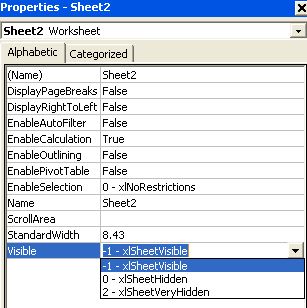
If you want to hide worksheets from users (maybe some lookup ranges for use in drop downs) then you can set the visible property in the VBE (Alt+F11).
Sunday, November 05, 2006
TM1 and Excel Insert Function
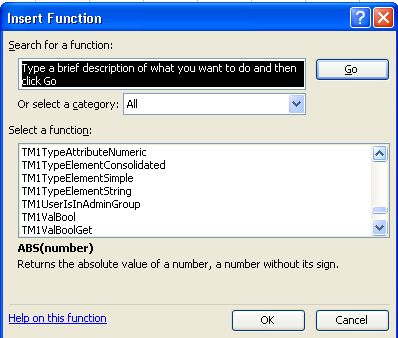
I quite often use the Excel Insert Function (fx button) to quickly create TM1 Excel formulas.
Normally I just select the TM1 category from the drop down list but you may notice that if you have All selected and scroll down the list of available functions you will find a whole load of other TM1 functions.
They all seem to be something to do with the API but you never know there may be something useful in there.....
Wednesday, October 18, 2006
Traffic Lighting
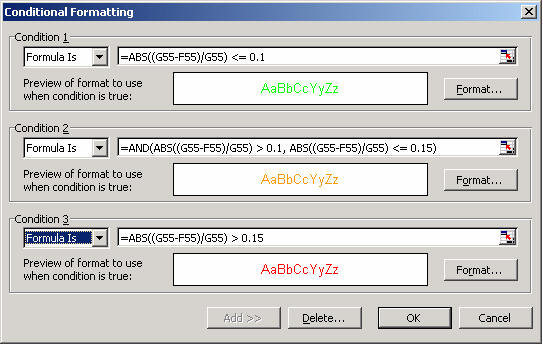
Sometimes people like to see traffic lighting as indictors of performance on reports. One easy way to do this in Excel is using Webdings and conditional formatting.
1. Type n into the cell you wish to have traffic lights on
2. format the cell to be Webdings (this will show a circle)
3. Apply conditional formatting using the picture as a guide.
Thursday, October 05, 2006
Yet Another Excel Tip
Press "ctrl + ~" to toogle between formulas and cell values in Excel... I find this really useful when working with a large worksheet full of TM1 formulas.
Monday, October 02, 2006
Excel Dashboard
If your looking for some nice ways to do dashboaring in Excel or maybe TM1Web then this website gives some ideas:
http://www.excelling.it/excel/dashboard_en.asp
http://www.excelling.it/excel/dashboard_en.asp
Bullets and Sparklines
Ther's a few BI tools saying they can do fancy graphs like Sparkline sand Bullet Graphs but ExcelUser shows you how you can do them in Excel and therefore dynamically off TM1 data.
http://www.exceluser.com/explore/bullet.htm
http://www.exceluser.com/dash/sparkintro.htm
There may be a small fee involved in some of them.
http://www.exceluser.com/explore/bullet.htm
http://www.exceluser.com/dash/sparkintro.htm
There may be a small fee involved in some of them.
Thursday, January 12, 2006
More Excel Shortcut keys
ctrl + 1 = show format cells dialog box
crtl + 9 = hide row (good for quickly hiding paging dimenions on TM1 slices)
crtl + 9 = hide row (good for quickly hiding paging dimenions on TM1 slices)
Wednesday, January 11, 2006
Excel F9
Did you know that you can highlight a portion of an Excel formula, press F9 and it will show you the result of the calculation.
I find it really useful when dealing with lots of nested IFs and Indexs etc
I find it really useful when dealing with lots of nested IFs and Indexs etc
Thursday, January 05, 2006
Excel 12
Have a look at this link to get an idea of how Office 2006 will look:
http://channel9.msdn.com/showpost.aspx?postid=114720
It will be strange to see the Excel TM1 menu in a "Gallery".
http://channel9.msdn.com/showpost.aspx?postid=114720
It will be strange to see the Excel TM1 menu in a "Gallery".
Subscribe to:
Posts (Atom)